
1. Home
  2. Docs
  3. Local Delivery Drivers fo...
  4. Delivery Drivers Panel
  5. Driver Panel – Driver Assigned

Driver Panel – Driver Assigned

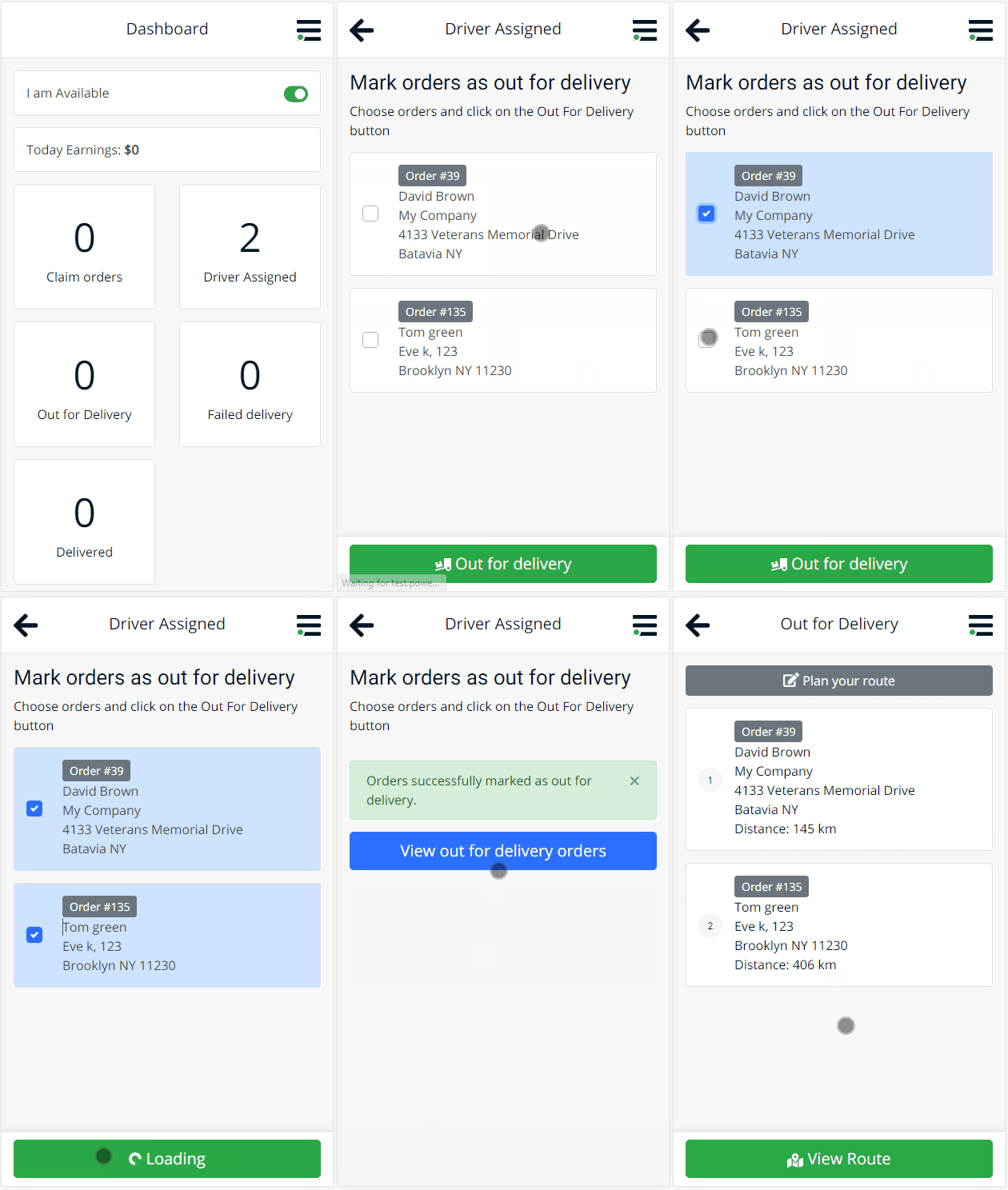
The Driver Assigned screen allows delivery drivers to view and manage all orders currently assigned to them. From this screen, drivers can prepare deliveries, update order statuses, and send notifications to customers with a single action.

Overview

Drivers can review assigned orders, view order details, and set orders out for delivery in just a few taps.

How It Works

  1. Open the Assigned Orders screen from the driver dashboard
  2. Click on any order to view its full details, including products, customer info, and address
  3. Review the order and prepare for delivery
  4. Select one or more orders and click Out for Delivery to begin the delivery process

Order Details

When viewing an individual order, drivers can access:

  • Billing and shipping addresses
  • Ordered products
  • Order notes (if enabled)
  • Customer contact information
  • Map or navigation tools (if configured)

This gives the driver everything needed to prepare for accurate, on-time delivery.

Status Update

Once an order is ready to go:

  • The driver selects the order(s)
  • Clicks Out for Delivery
  • The order status is updated automatically

Notifications

When an order is marked Out for Delivery:

  • The customer receives an SMS, WhatsApp message, or email (depending on plugin configuration)
  • The order notes are updated
  • The delivery workflow officially begins

Notifications help keep customers informed and reduce missed deliveries or confusion.

Summary

The Driver Assigned screen gives delivery drivers full control over preparing and dispatching orders. With built-in status updates and automated customer alerts, it helps streamline the final mile of the WooCommerce order lifecycle.