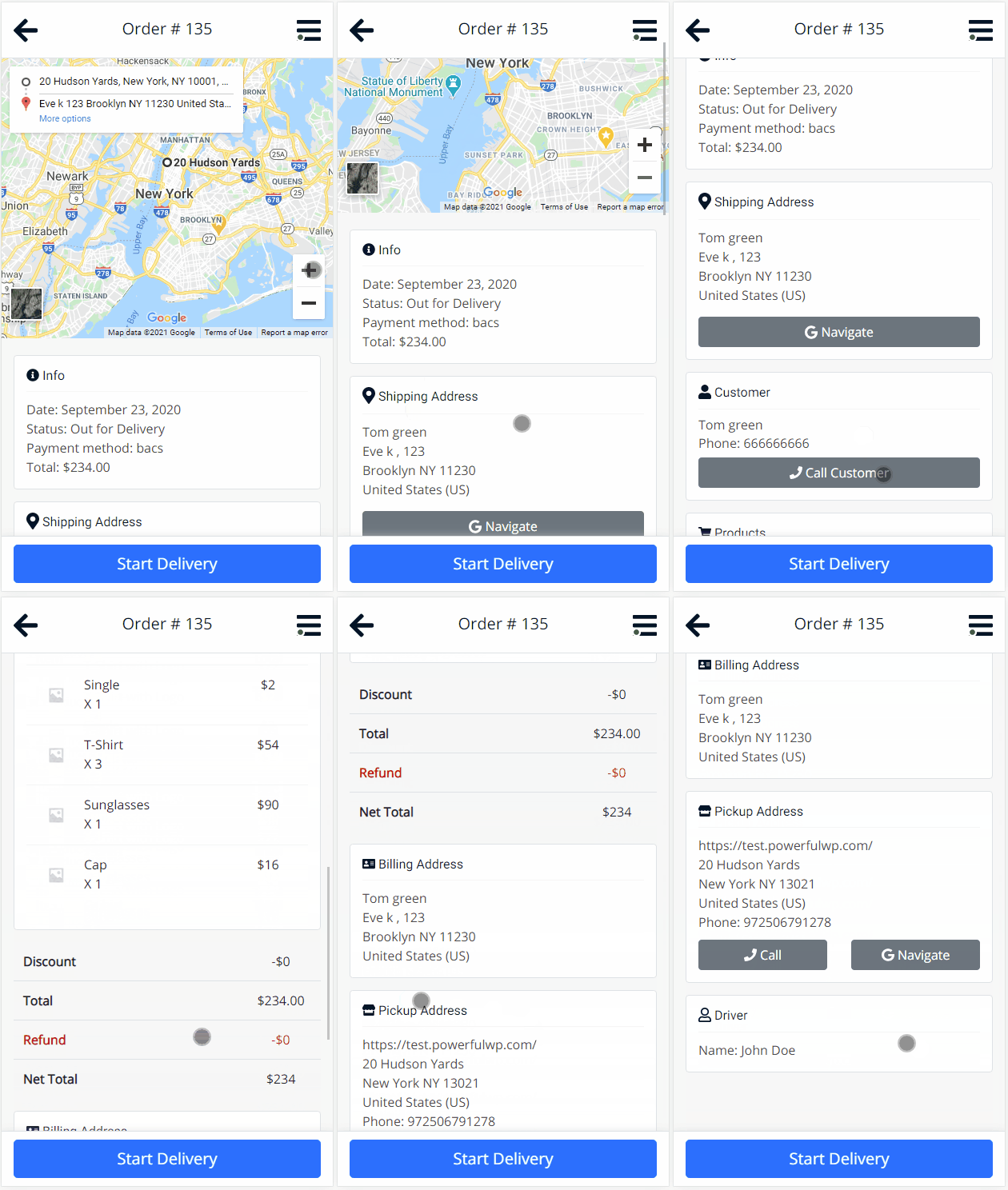
The Order Page in the Driver Panel is where drivers manage individual deliveries from start to finish. It provides a complete view of each order, including customer details, pickup and delivery addresses, product information, and real-time tools to take action at the right time. Every part of the page is built for speed, clarity, and ease of use.
Order Overview

This screen is designed for mobile and displays only what matters most to help you stay focused and on schedule.
What the Page Shows
When you open an order in the panel, you will see the following details:
Order Summary
Order number, total cost, and the current status of the order.
Customer Information
Customer name and phone number with a tap-to-call feature.
Shipping Address
Full delivery address with distance and estimated travel time.
Pickup Address
Location where the order should be picked up. Also supports navigation.
Billing Details
Includes the customer’s billing name, address, and selected payment method.
Product List
Displays each item, quantity, and price, along with any applied discounts or shipping charges.
Route and Directions
Step-by-step directions and a live distance estimate. You can open the route in your navigation app with one tap.
Driver Information
Displays your name, confirming that you are assigned to this order.
Buttons Based on Order Status
The action button you see depends on the current order status. The Driver Panel shows only the next action you need to take, so there is no confusion.
| Order Status | Button(s) Shown | What the Button Does |
|---|---|---|
| Processing (Unassigned) | Claim Order | Assigns the order to you and moves it to your Assigned list. |
| Driver Assigned | Out for Delivery, Unassign | Out for Delivery changes the status and notifies the customer. Unassign releases the order if you cannot complete it. |
| Out for Delivery | Start Delivery | Logs your start time, calculates the route, and sends notifications. (See Start Delivery documentation) |
| Failed Delivery | Delivered, Not Delivered | Opens the proof-of-delivery screen so you can confirm the outcome. |
| Delivered | No buttons | The delivery is complete. Nothing more is needed. |
Navigation and Contact Tools
- Tap the Direction button to open the live route in your default map app.
- Tap the customer or store phone number to call instantly.
- Distance and estimated time updates are provided in real-time.
- Admins and store staff can see your progress and actions as they happen.
Summary
The Order Page is your command center for each delivery. It brings together every key detail, keeps you on the fastest route, and gives you the right button at the right time. Whether you’re just starting or completing a delivery, you’ll know exactly what to do no confusion, no delays.